Issuer Portal

Token creation, business profile, data room management, dividends, and wallet.

Test Accountissuer@alef.marketsIssuer@123Issuer

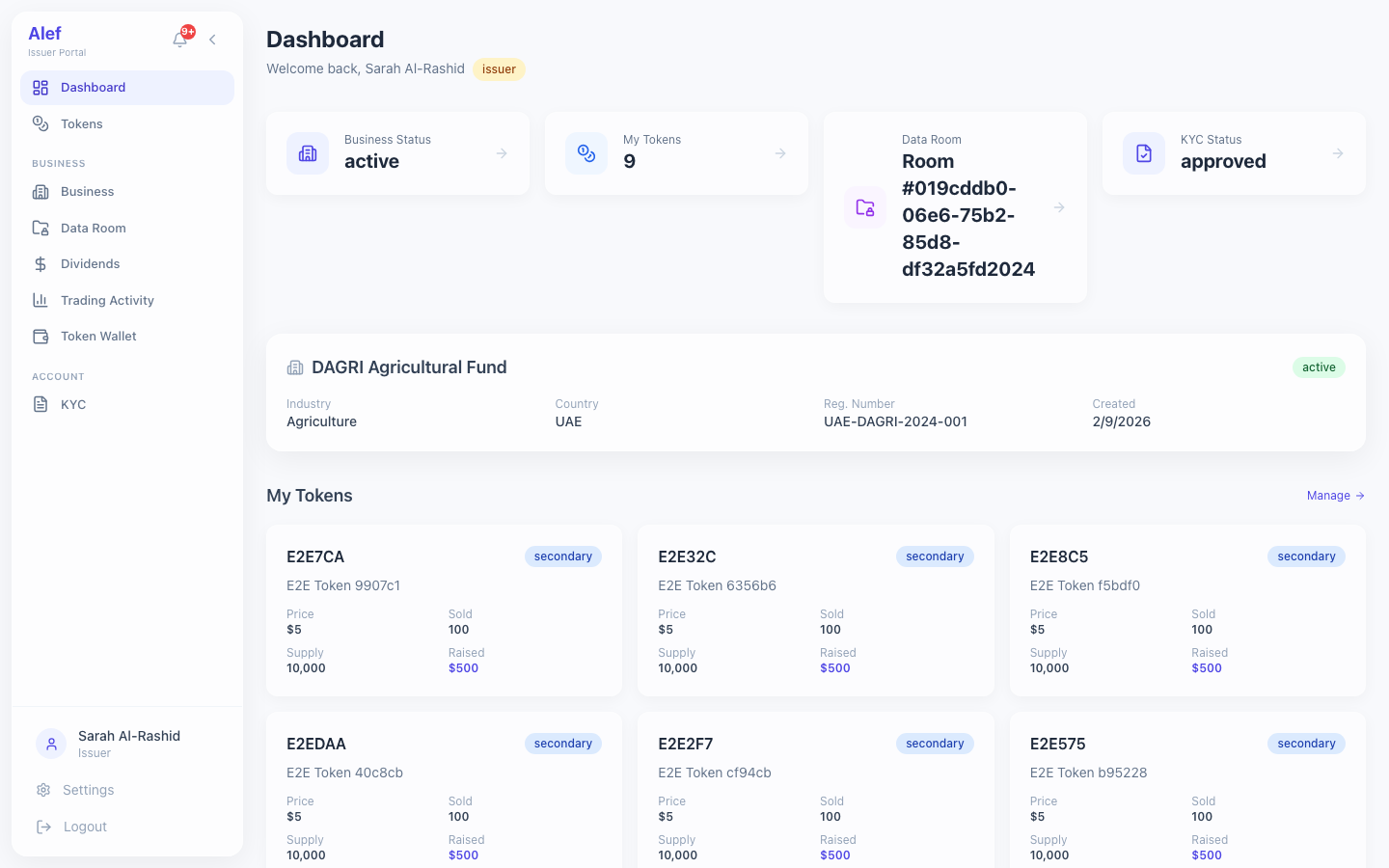
Issuer dashboard shows business status, token portfolio, and offering progress.
Issuer Dashboard
Issuer DashboardBusiness, tokens, and offering status
4 status cards: Business Status, My Tokens, Data Room, KYC Status
Business summary card with name, industry, country, and approval status
Token grid: each token with status badge, supply, price, and amount raised
Active offerings section with subscription progress
Quick links to token management, data room, and dividends

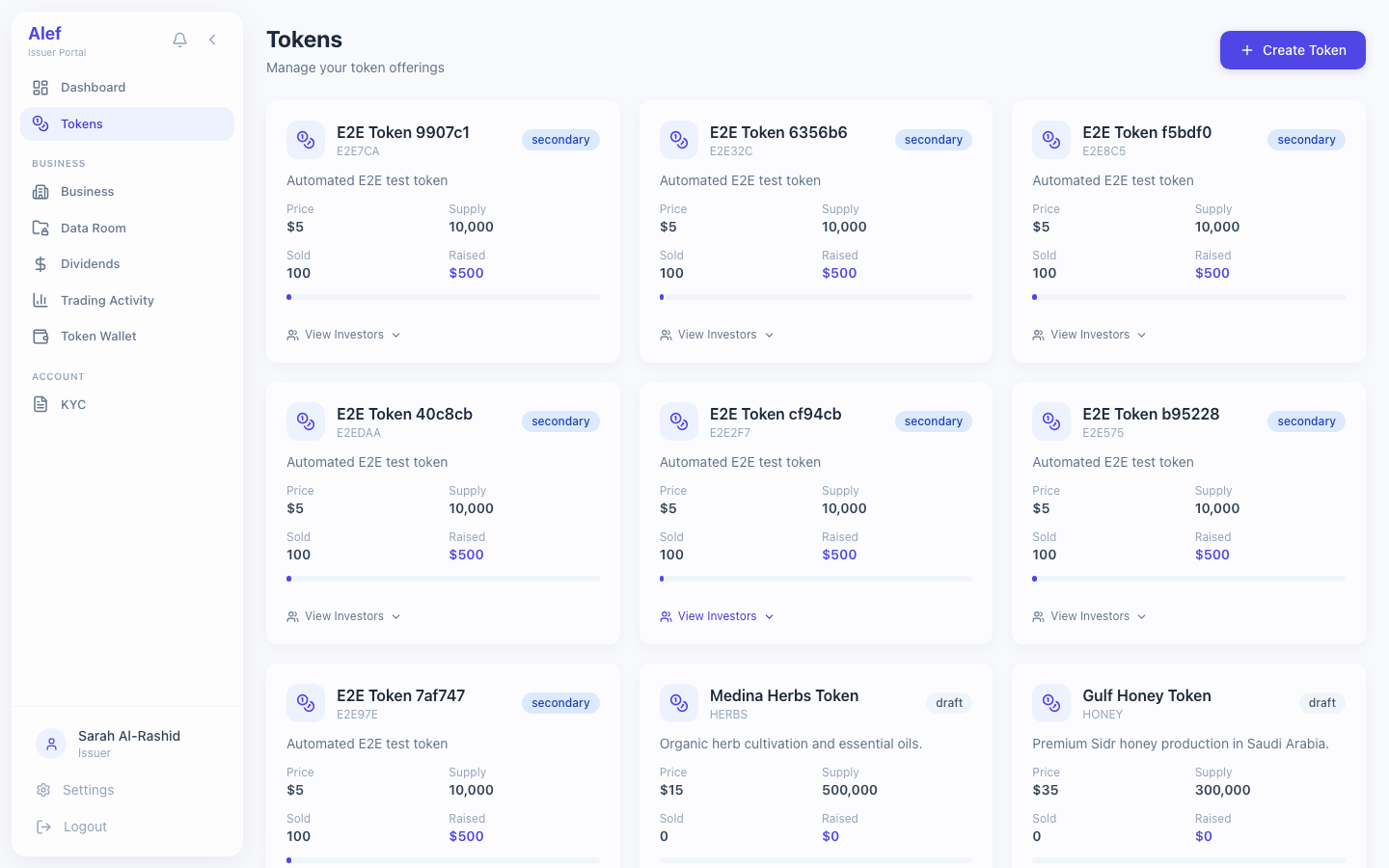
Create and manage security tokens. Issuers define token parameters; admin handles deployment.
Tokens List
Tokens List
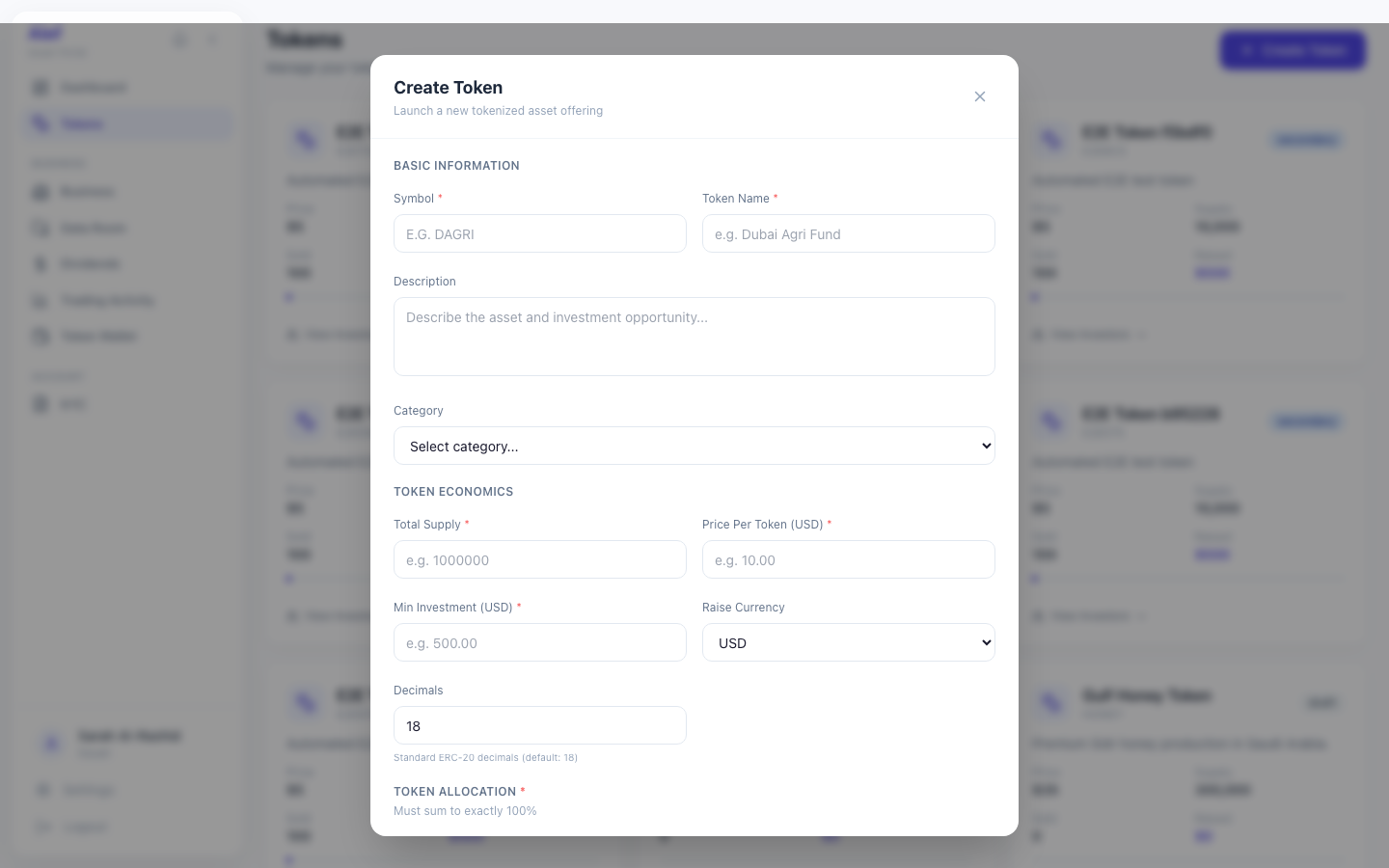
Create Token Modal
Create Token Modal
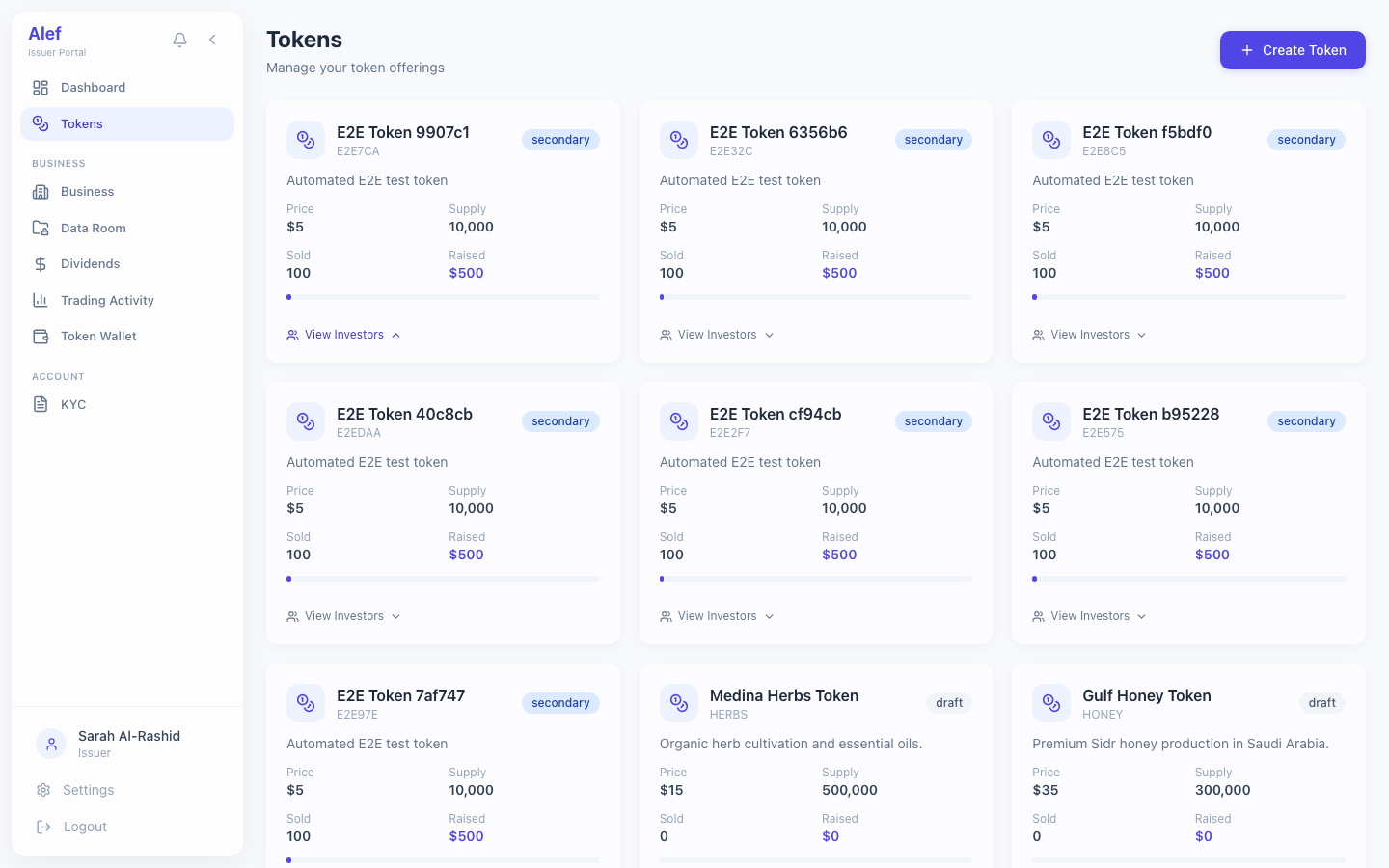
Token cards with detailed metrics: symbol, name, status, supply, price, raised
Status badges: draft, primary, secondary, paused
Create New Token button opens modal form
Token detail page with investor list link

Creating a Token

1

Click 'Create Token' button

Click 'Create Token' button
2

Enter token details

Name, symbol, description, category (agriculture)

3

Configure supply and pricing

Total supply, price per token, minimum investment

4

Set allocation breakdown

Primary offering %, team %, reserve %

5

Define offering timeline

Primary start and end dates

6

Submit token (status: draft)

Admin reviews and deploys to blockchain

Token creation requires an approved business profile. The business must be in 'active' status before any tokens can be created under it.
See also:Admin Portal — Token Deployment

Manage your business registration and profile information.
Business Profile
Business ProfileRegistration details and Alef allocation
Business name, registration number, country, and industry
Description and website URL
Alef allocation percentage (platform fee on token supply)
Status badge with review history
Editable fields (name, description, website) — changes require re-approval
The Alef allocation percentage determines what percentage of the token supply goes to the platform. This is negotiated per issuer and set by admin.

Upload and manage due diligence documents in 5 structured folders.
Data Room
Data Room5-folder document management
5 folders: whitepaper, financials, legal, compliance, due_diligence
Document upload with title, description, and document type
Versioning — upload new versions of existing documents
Review status per document: draft, in_review, approved, published, rejected
Whitepaper builder — structured form for creating whitepaper content
Admin reviews and approves documents before investor access
1

Navigate to Data Room from sidebar

Navigate to Data Room from sidebar
2

Select a folder (e.g., whitepaper)

3

Upload document or use the whitepaper builder

4

Document enters 'draft' status

5

Submit for review (status: in_review)

6

Admin approves → document becomes 'approved' and visible to investors

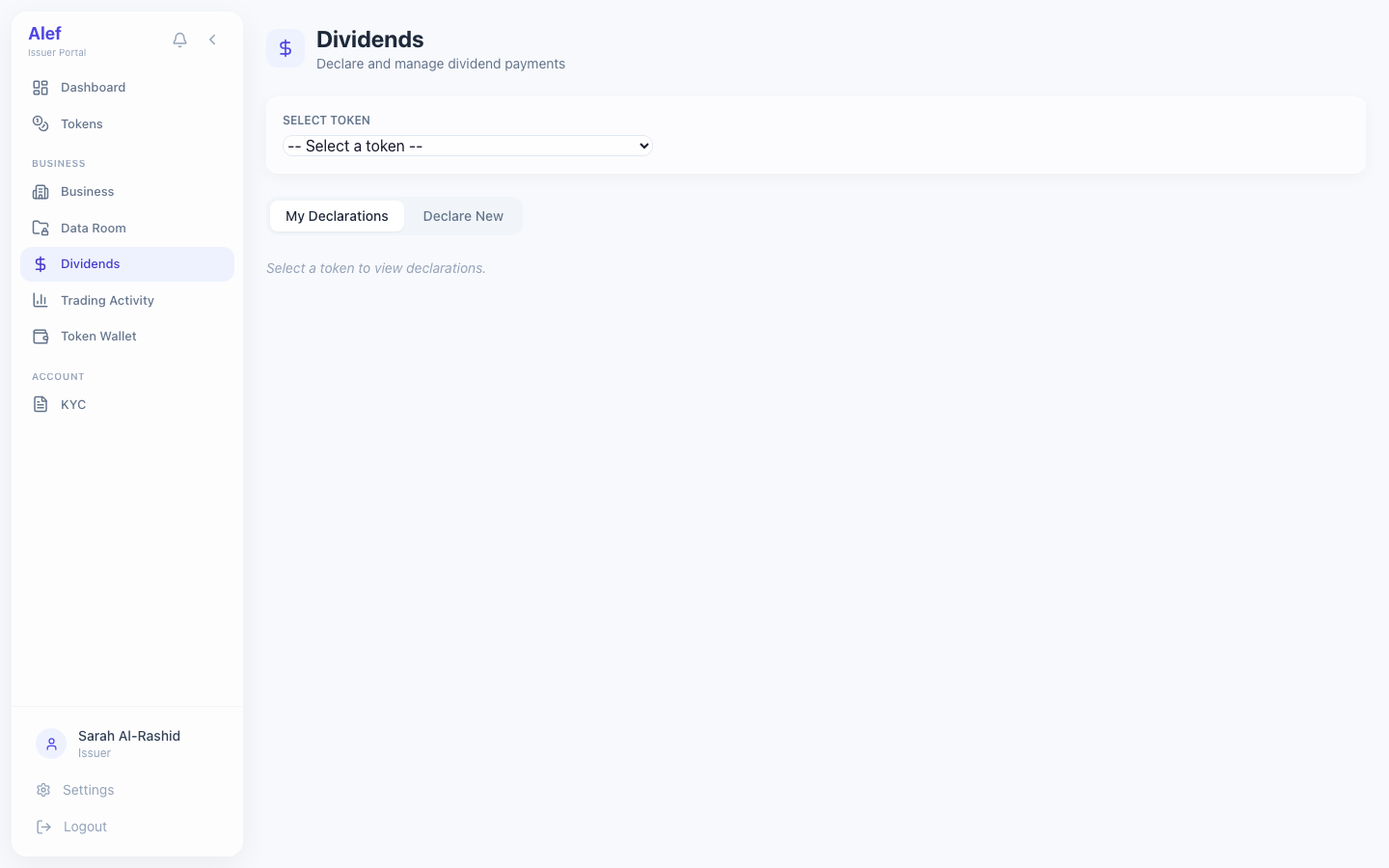
Declare dividends for your tokens. Supports both fiat and token dividends.
Dividend Declaration
Dividend DeclarationDividend list with declare form
List of declared dividends with status tracking
Two dividend types: fiat (USD per token) and token (tokens per holding)
Fiat dividend form: amount per token, record date, payment date, description
Token dividend form: tokens per holding, record date, payment date
Submit for admin approval (status: pending_approval)
Track lifecycle: draft → pending_approval → approved → distributing → distributed
1

Click 'Declare Dividend' button

Click 'Declare Dividend' button
2

Select dividend type: Fiat or Token

3

Enter amount per token and dates

4

Submit declaration (status: draft)

5

Submit for approval (status: pending_approval)

6

Admin approves and distributes to all token holders
See also:Dividend Distribution Workflow
Trading Activity
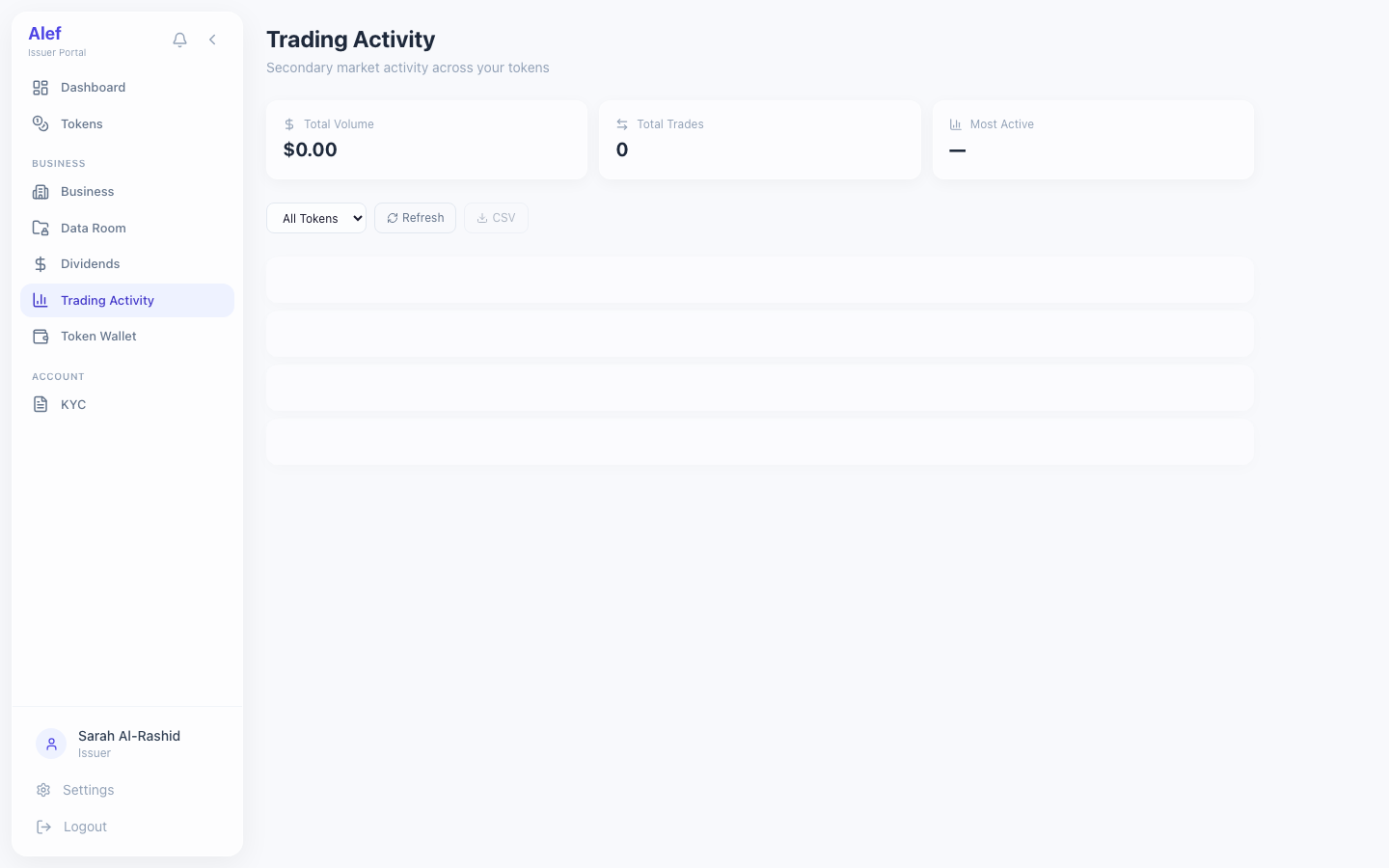
Trading ActivitySecondary market trade monitoring

Monitor secondary market trading activity across all your tokens. Track volume, trade counts, and identify which tokens are most actively traded by investors.
3 summary cards: Total Volume (USD), Total Trades (count), Most Active token by volume
Token filter dropdown — view activity for all tokens or a specific one
Trade table with 5 columns: Token, Price, Quantity, Total, Time
Aggregates trades across all issuer tokens, sorted by most recent first
Pagination: 20 trades per page with page navigation
CSV export — download full trade data for reporting and analysis
Refresh button for on-demand data reload
Issuer-only page — restricted to users with issuer role
Use the CSV export to generate secondary market activity reports for your board or investors. Filter by specific token to isolate trading data per security.
Token Investors
Token InvestorsCap table with investor details

View the cap table for each of your tokens — see who holds your tokens, how much they invested, and their subscription status. Accessible from the token detail page.

3 summary cards: Total Investors (count), Total Raised (USD), Average Investment (USD)
Investor table with 6 columns: Name, Email, Quantity, Total Cost, Status, Date
Search by investor name or email with real-time filtering
Filter by payment status: confirmed/transferred, rejected, pending
Status badges: confirmed (green), rejected (red), pending (yellow)
Pagination: 20 investors per page
Accessed via 'View Investors' link on the token detail page
Available to issuers, admins, and staff — investors cannot see other holders
1

Navigate to your token's detail page from the Tokens list

2

Click 'Investors' link in the issuer overview section

3

View summary cards for total investors, raised amount, and average investment

4

Search or filter to find specific investors

5

Review subscription status and payment amounts per investor

The investor list shows all subscribers to your token's primary offering. Secondary market buyers are reflected in holder counts but individual secondary trades are tracked separately in the Trading Activity page.