Investor Portal

Trading, portfolio management, wallet, KYC, data rooms, dividends, and subscriptions.

Test Accounttest@alef.marketsInvestor@123Investor

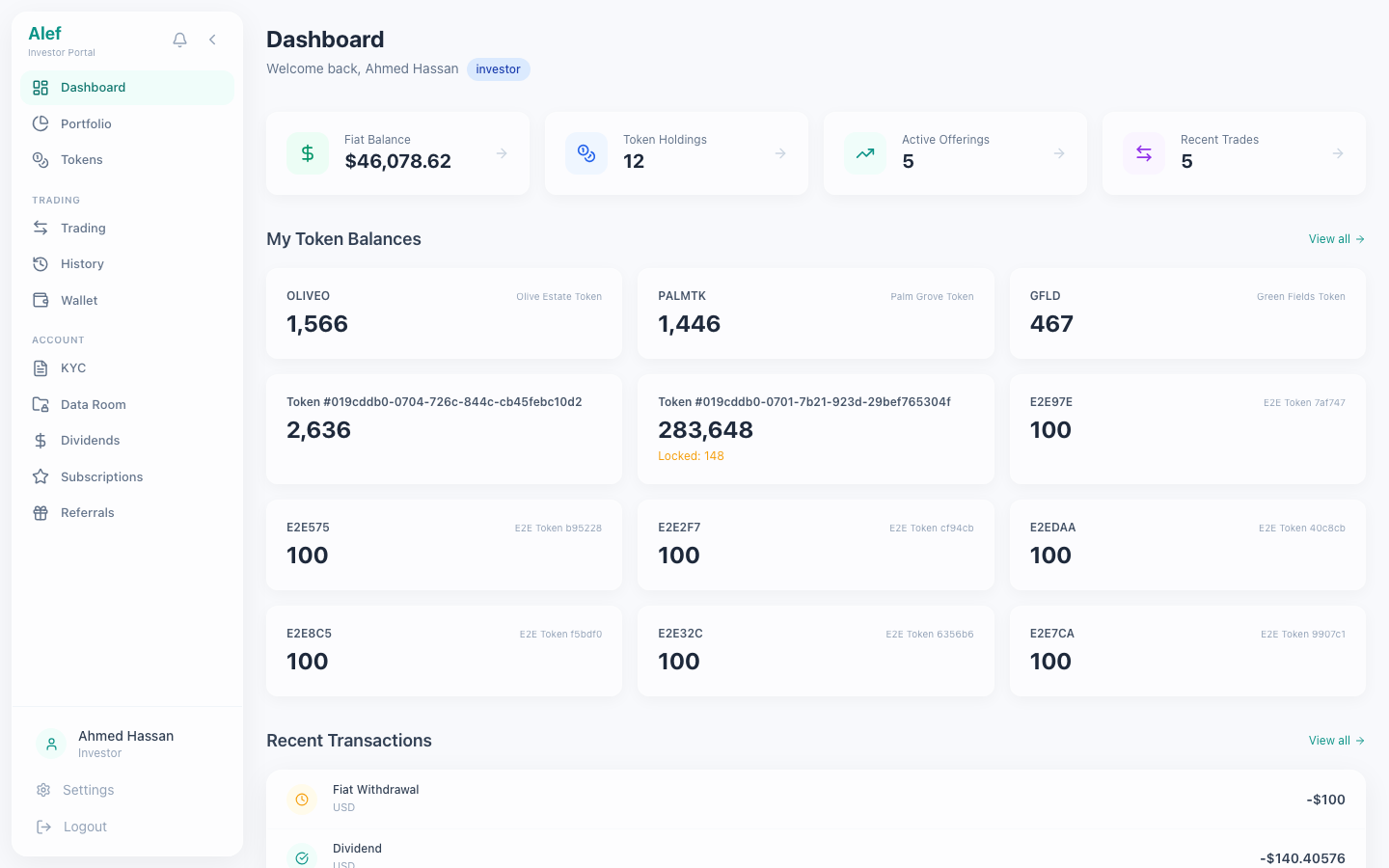
The investor dashboard provides a portfolio overview with key metrics and quick navigation.
Investor Dashboard
Investor DashboardPortfolio overview with positions
Portfolio value summary with total invested and current value
P&L calculation (unrealized + realized)
Active positions grid — each token with balance, value, and change
Market overview section with top movers
Quick links: Trade, Wallet, History, KYC

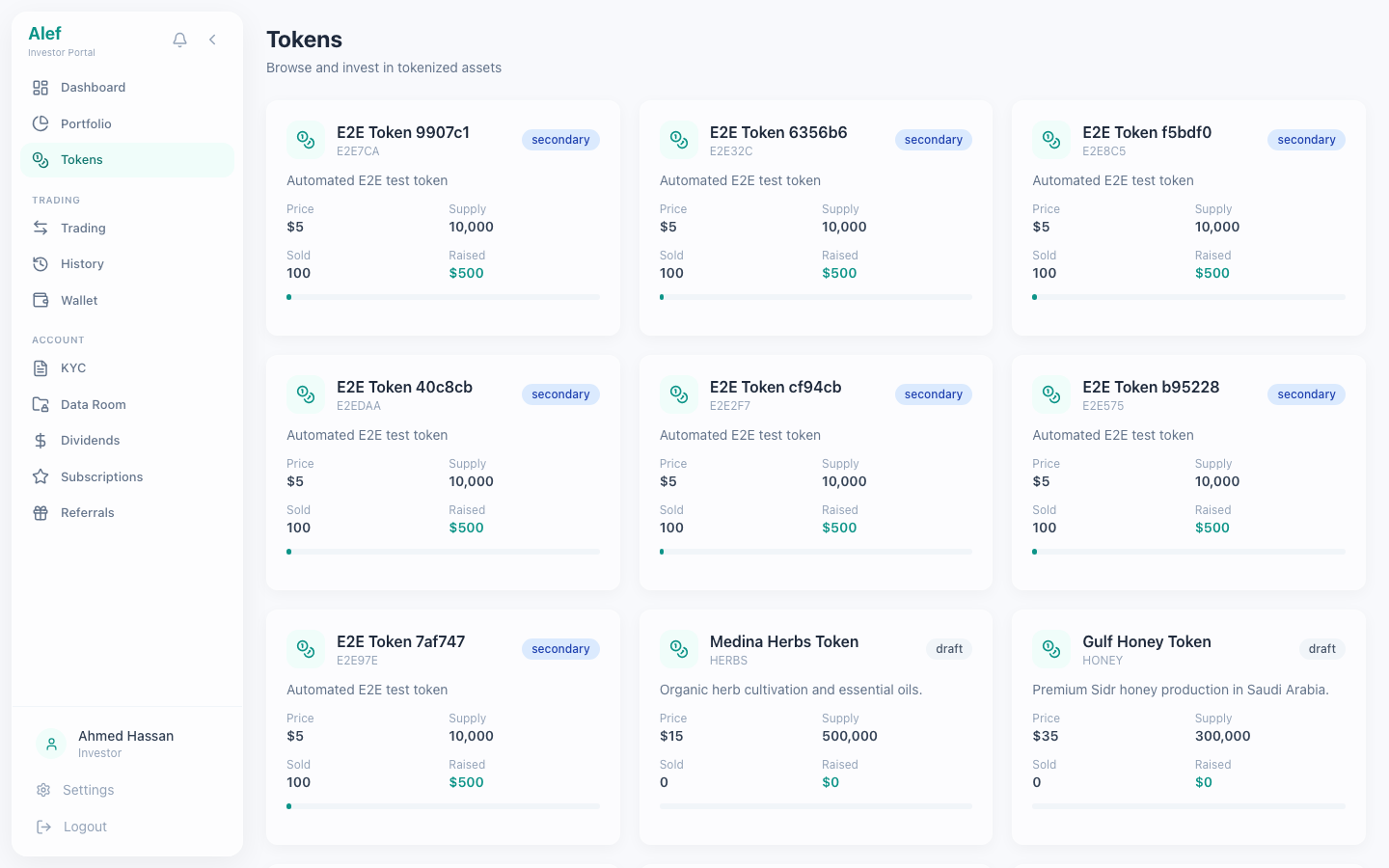
Browse available security tokens and subscribe to primary offerings.
Tokens List
Tokens ListAvailable tokens for investment
Token cards with: symbol, name, price, total supply, status badge
Category badges: agriculture, real_estate (Phase 2)
Subscribe button for primary offering tokens
Link to token detail page with orderbook and charts
Status indicators: primary (offering open), secondary (trading active), paused

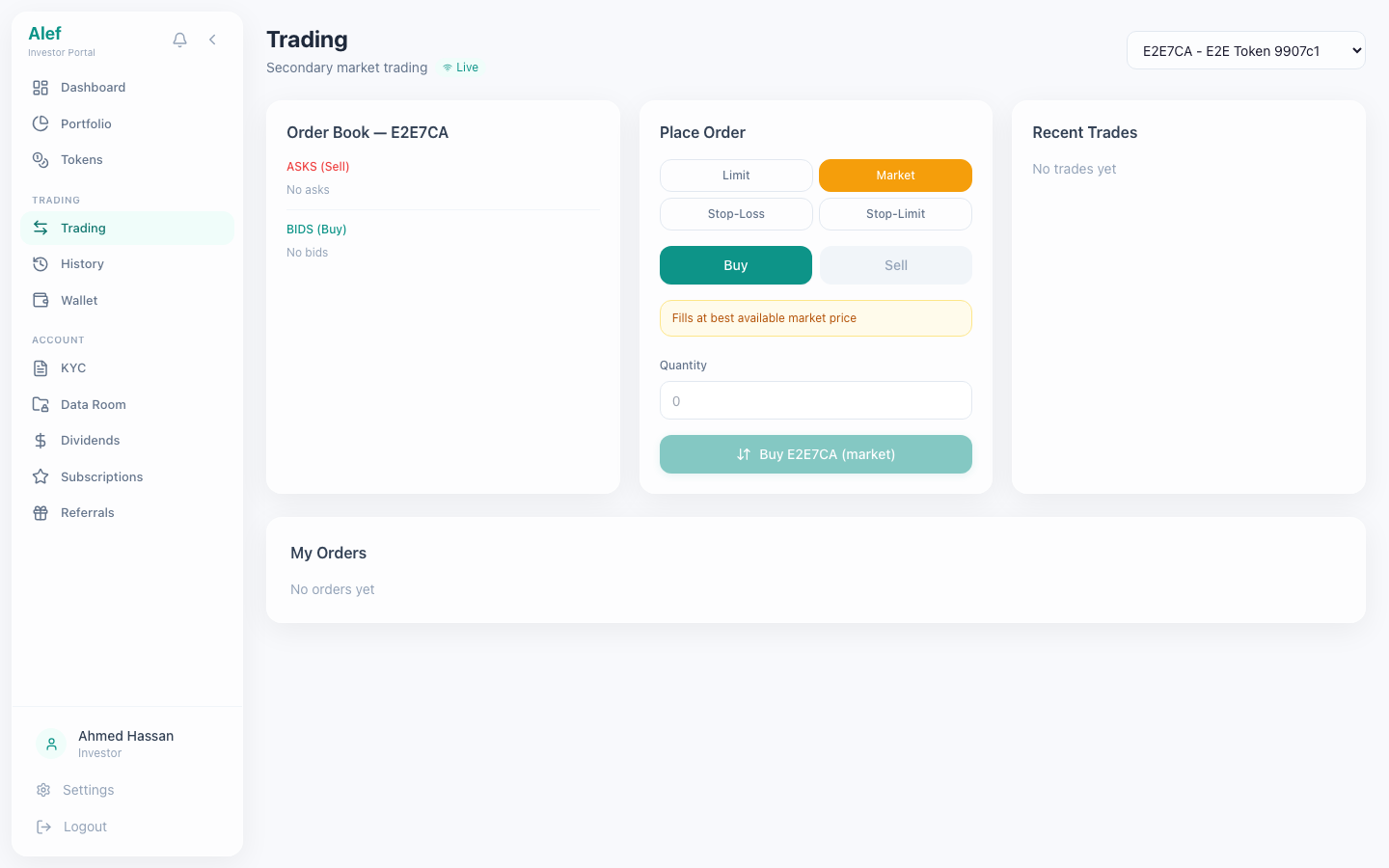
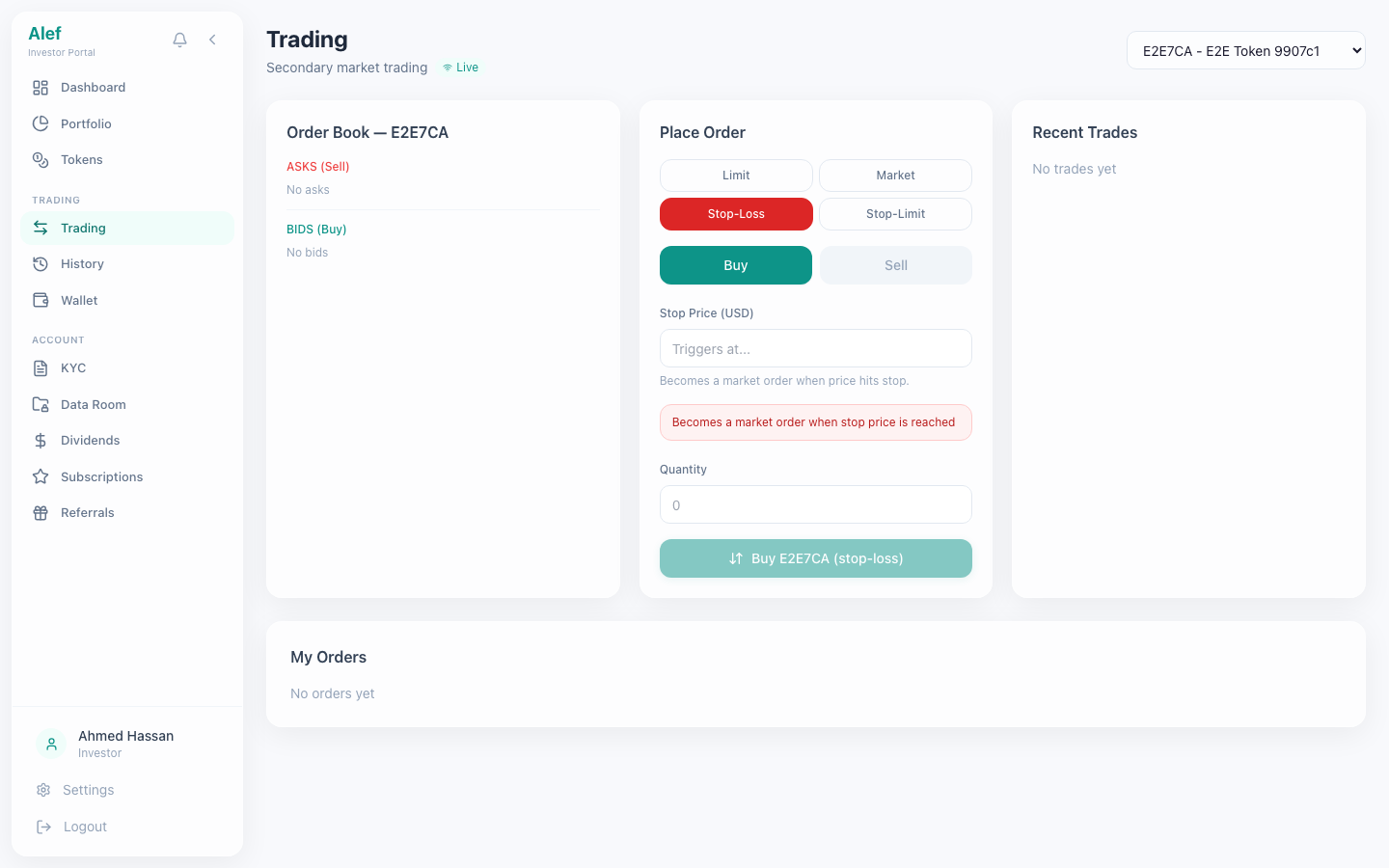
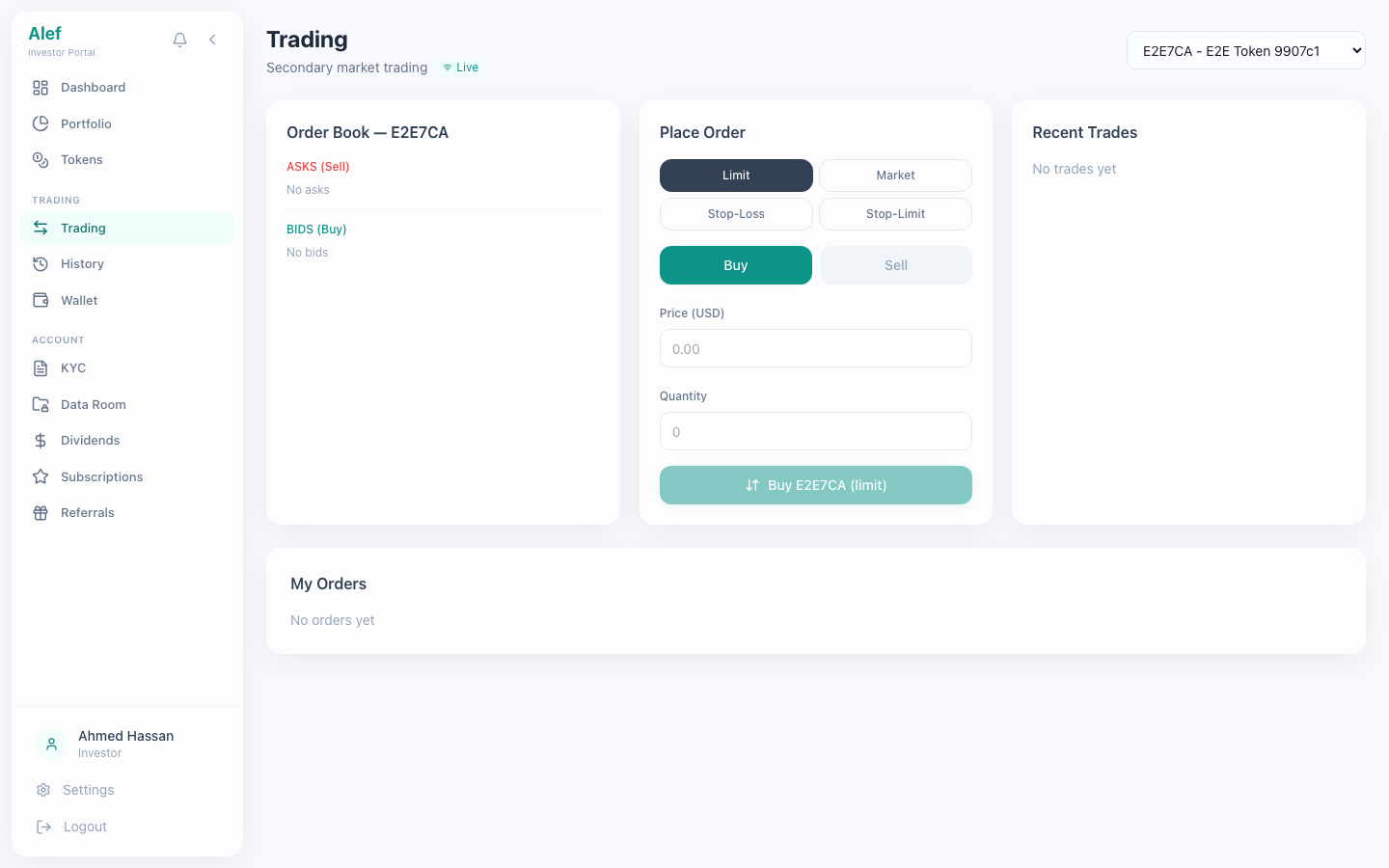
Full-featured trading interface with live orderbook, 3 order types, and real-time WebSocket updates.
Trading Page
Trading PageOrderbook, order form, chart, recent trades
Live orderbook visualization — bids (green) and asks (red) with depth bars
Order form with Buy/Sell toggle and 3 order types
Recent trades feed with price, quantity, and timestamp
OHLC candlestick price chart
WebSocket real-time updates (trades, orderbook changes)
Token selector dropdown for switching between tradeable tokens

Order Types

Market Order
Market Order
Limit Order
Limit Order
Stop Order
Stop Order

Market Order

Executes immediately at the best available price. Specify quantity only — price is determined by the orderbook.

Limit Order

Executes at your specified price or better. The order sits in the orderbook until matched or cancelled.

Stop Order

Becomes active when the market reaches your stop price. Used for stop-loss protection. Status: pending_stop until triggered.

1

Navigate to Trading from sidebar or dashboard

2

Select a token from the dropdown (e.g., DAGRI)

3

Choose Buy or Sell and select order type

4

Enter quantity (and price for limit/stop orders)

5

Review estimated total and fees

6

Click Place Order to submit

Trading requires approved KYC (level 2) and sufficient fiat balance for buys or token balance for sells. The matching engine processes orders at ~760K orders/sec.

Manage fiat balance and view blockchain wallet address.
Investor Wallet
Investor WalletFiat balance + blockchain address
Fiat balance display (USD)
Blockchain wallet address (Ethereum/Polygon) — auto-assigned from Hardhat accounts
Deposit: request fiat deposit (manual bank transfer for MVP)
Withdraw: request fiat withdrawal with amount
Transaction history with date, type, amount, status
CSV export for transaction records
Fiat deposits require admin confirmation. There is no automated banking integration in MVP. Allow 1-2 business days for deposit processing.

Complete Know Your Customer verification to unlock trading and investment features.
KYC Application
KYC ApplicationIdentity verification form
Personal information: full name, date of birth, nationality, address
Identity document: passport, emirates_id, or national_id
Document number and expiry date
Status tracking: pending → in_review → approved | rejected
Resubmit capability after rejection (with corrected information)
KYC level progression: Level 1 (basic), Level 2 (full — required for trading)
1

Navigate to KYC from sidebar

Navigate to KYC from sidebar
2

Fill in personal information

3

Select document type and enter details

4

Submit application (status: pending)

5

Admin reviews and approves/rejects

6

If approved: KYC level 2 granted, trading unlocked
See also:KYC Lifecycle Workflow
Portfolio
PortfolioToken holdings with P&L tracking and allocation chart

Consolidated view of all your token holdings with real-time P&L tracking, cost basis calculation, and allocation visualization.

4 summary cards: Portfolio Value, Cost Basis, Unrealized P&L (with percentage), Holdings count
Allocation bar — horizontal stacked chart showing portfolio composition by percentage
Color-coded legend mapping each token to its portfolio share
Holdings table with 8 columns: Token, Balance, Locked, Avg Cost, Price, Market Value, P&L, P&L %
P&L calculation: market value minus cost basis, green for profit, red for loss
Average cost computed from historical buy trades (total spent / total bought)
Locked balance shown separately in amber for tokens under vesting or pending settlement
Fiat balance card with available USD and link to Wallet page
Sorted by market value (highest position first)
Refresh button for on-demand data reload
Portfolio P&L uses your actual average purchase price across all buy trades, not the initial offering price. Cost basis updates automatically as you make additional purchases.

Deep-dive into any token with live orderbook, interactive price chart, recent trades, and your current position. This is the primary research page before placing trades.

Header breadcrumb with back navigation to token list
5 metric cards: Price, Total Supply, Tokens Sold, Total Raised, Min Investment
Offering progress bar for primary tokens (sold / allocation target)
Interactive OHLC price chart with 3 period tabs: 1 hour, 1 day, 1 week
Chart hover tooltip showing Open, High, Low, Close, and Volume per candle
Chart gradient fill — green when price is up, red when down
Mini orderbook view: top 5 bids (green) and asks (red) with quantities
Recent trades table: price, quantity, total, timestamp (10 most recent)
Your Position card: balance, locked balance, and market value at current price
Action buttons: Subscribe (primary tokens) or Trade (secondary tokens)
Link to Data Room for due diligence documents
Token info card: ID, status badge, created date, offering end date
About section: full description with token details (decimals, currency, contract address)
1

Click any token card from the Tokens page to open its detail view

2

Review the price chart — switch between 1h, 1d, and 1w periods

3

Check the orderbook for current bid/ask levels and depth

4

Review recent trades for price action and volume

5

Check your position (balance and market value)

6

Click 'Trade' to go to the trading terminal for this token
The mid-price displayed is calculated from the best bid and ask in the orderbook. If no orders exist, the last trade price is used. If no trades have occurred, the offering price is shown.
Order & Trade History
Order & Trade HistoryOrders and trades with filtering and CSV export

Complete audit trail of all your orders and trades with filtering, pagination, and CSV export.

Two tabs: Orders (with count) and Trades (with count)
Orders table: ID, Token, Side (badge), Type, Price, Stop Price, Qty, Filled, Status, Date
Trades table: ID, Token, Side (badge), Price, Qty, Total, Fee, Date
Side badges: Buy (green) and Sell (red) for instant visual recognition
Status badges: open (blue), partially_filled (yellow), filled (green), cancelled/pending_stop (gray)
Filter orders by status: All, Open, Partially Filled, Filled, Cancelled, Pending Stop
Filter trades by token: All Tokens or specific token
CSV export — download filtered data with headers for spreadsheet analysis
Pagination: 20 records per page with page navigation
Refresh button to reload current tab data
Use the CSV export to download your complete trade history for tax reporting or portfolio analysis. The export includes all filtered records, not just the current page.